Skip to main content
Add Contact to a List
Follow
There are multiple ways to add a Contact to a List.
Contact List View
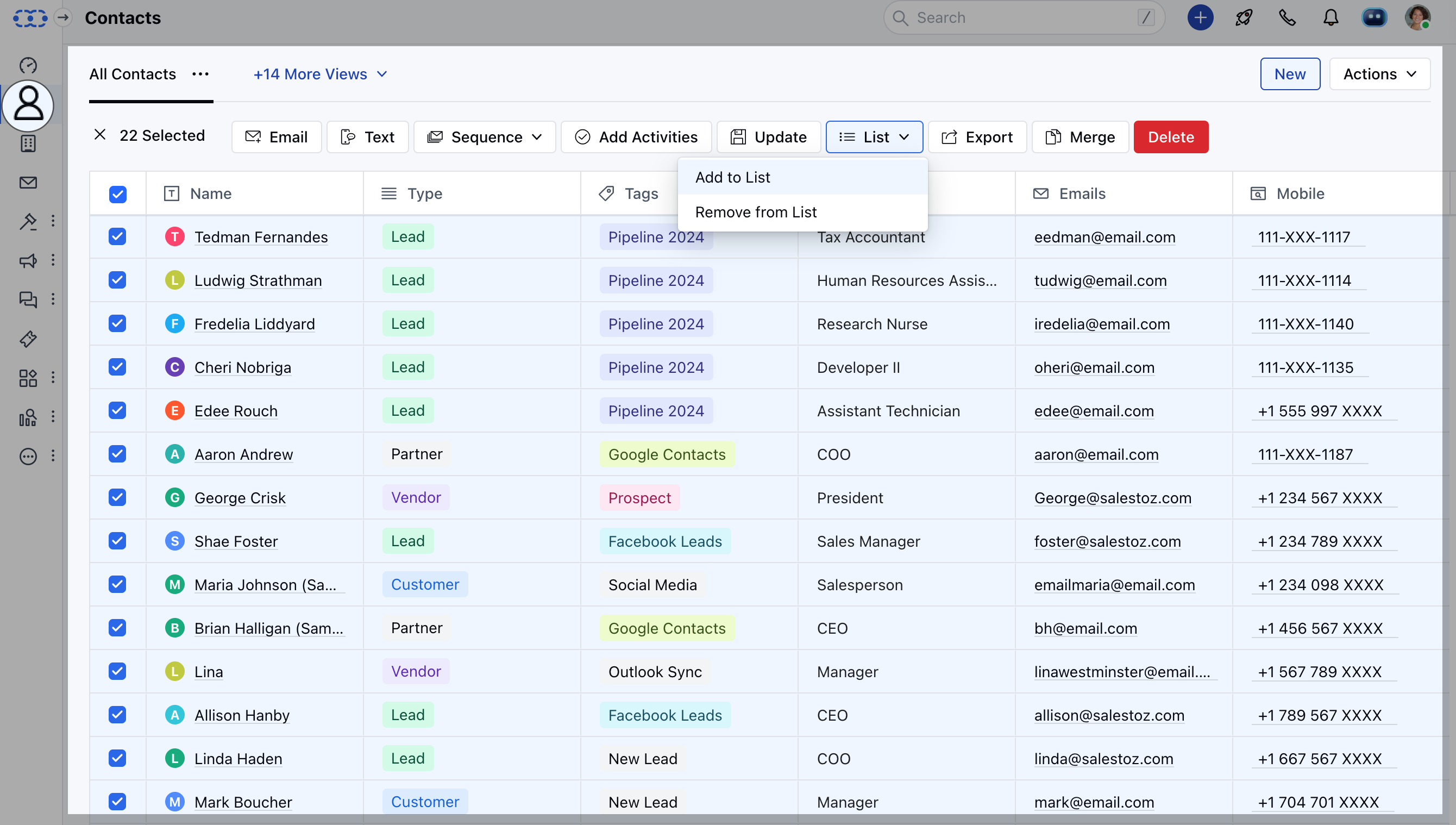
- You can select the contact records in the list view
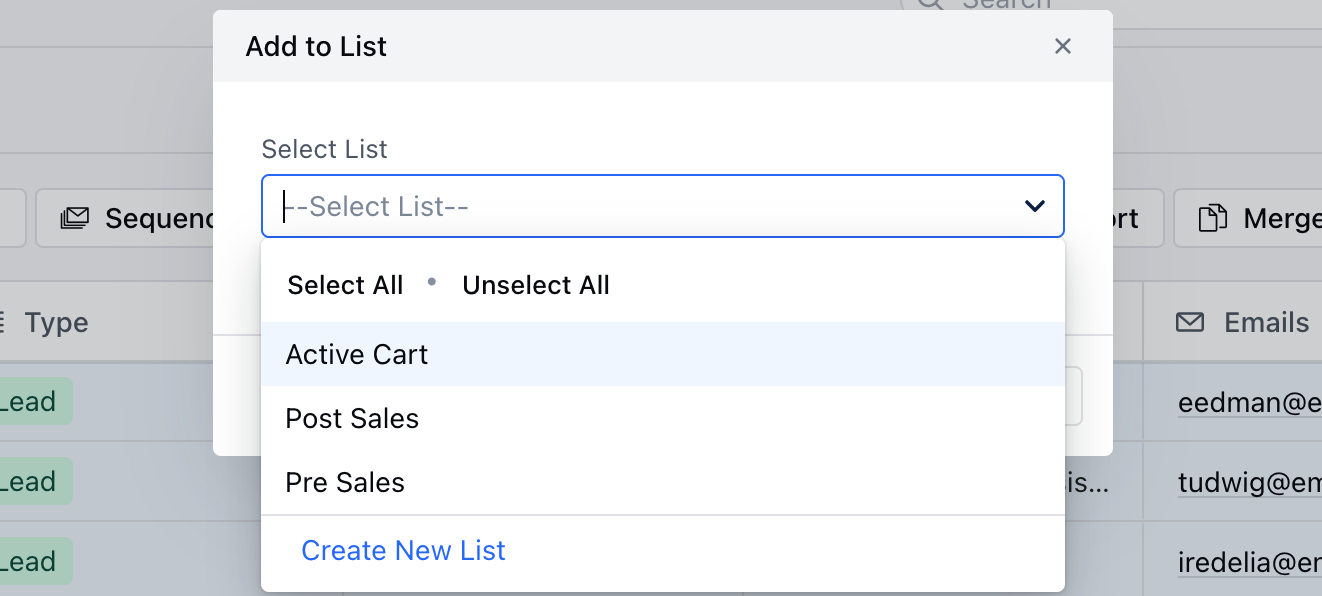
- Click on the "Add to List" option where you will be prompt with saved Lists
- Select the List where you wish to add the contact to; where you can select multiple Lists
- Once selected, Hit the Save button
Contact Detailed View
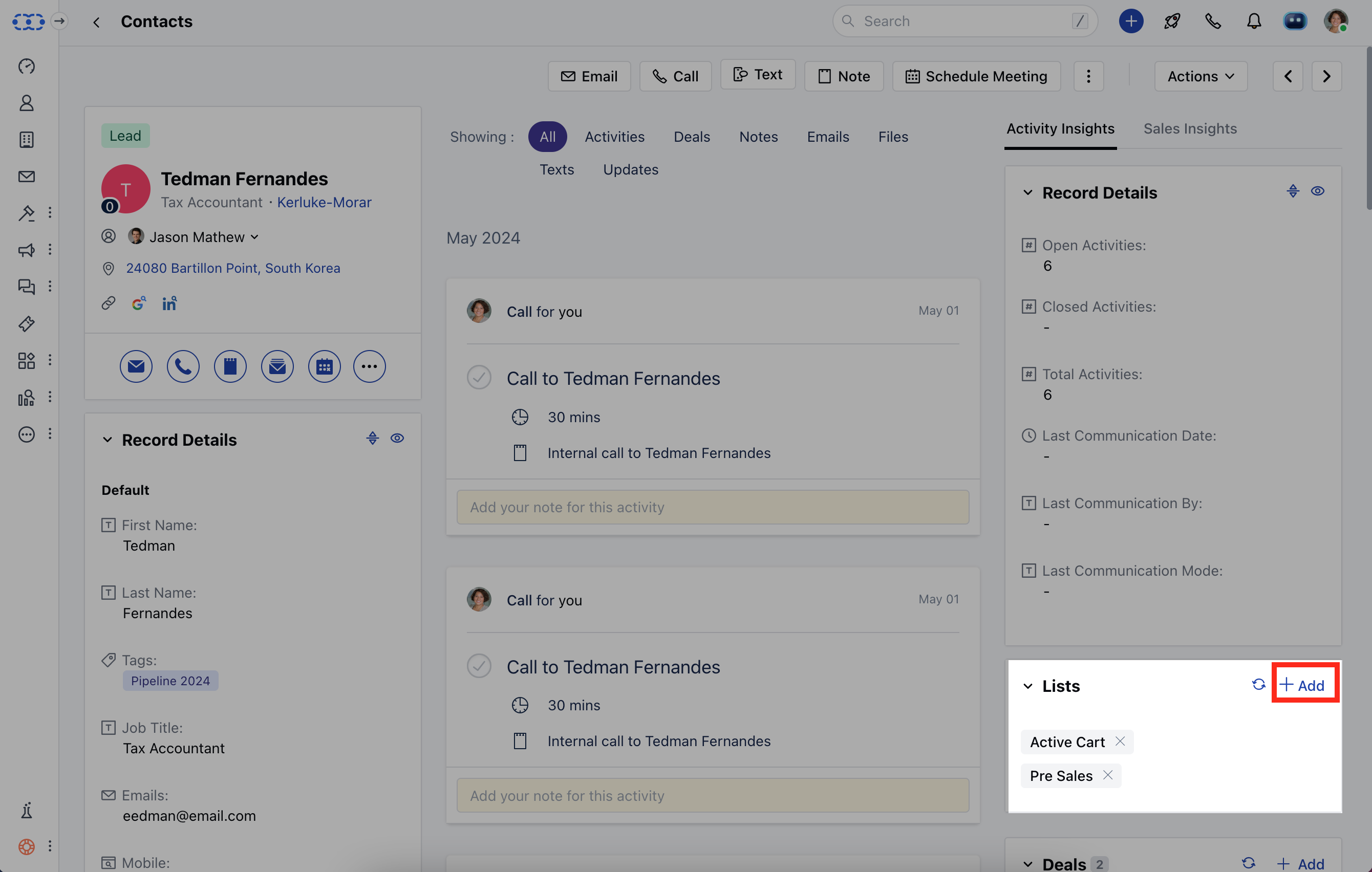
- You can get to the detailed view of contact by clicking on the name under the contact list page or contact selection in the global search
- Look out for the List widget on the Page and click on the (+) Button
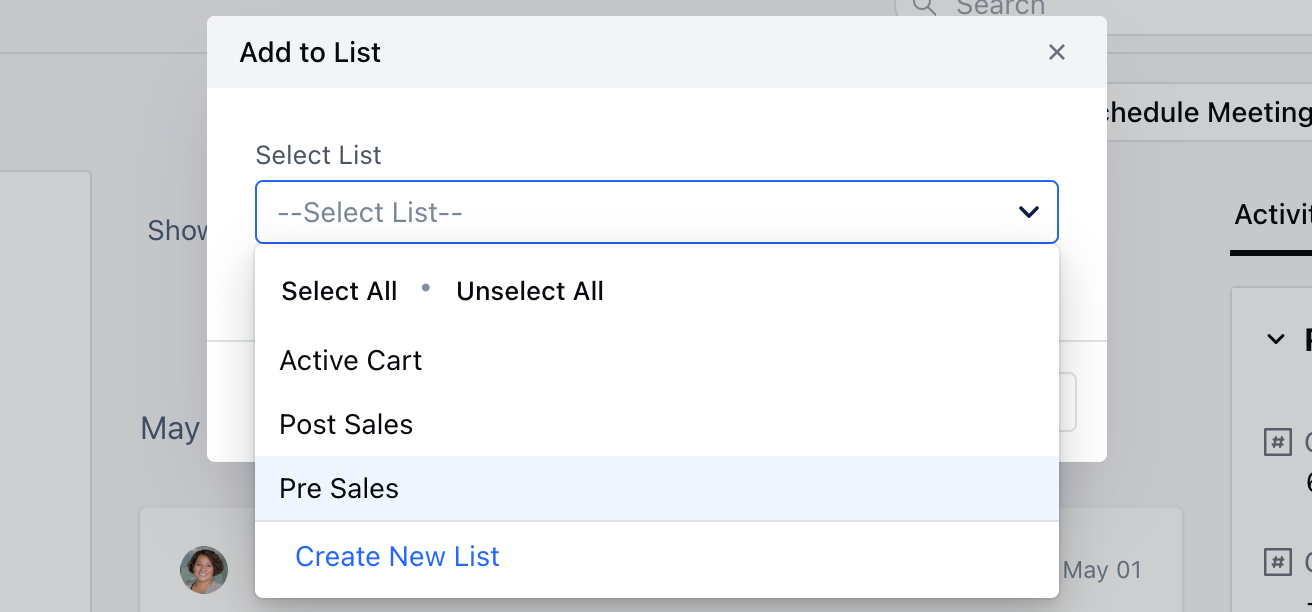
- Select the List where you wish to add the contact to; where you can select multiple Lists
- Once selected, Hit the Save
Contact Preview
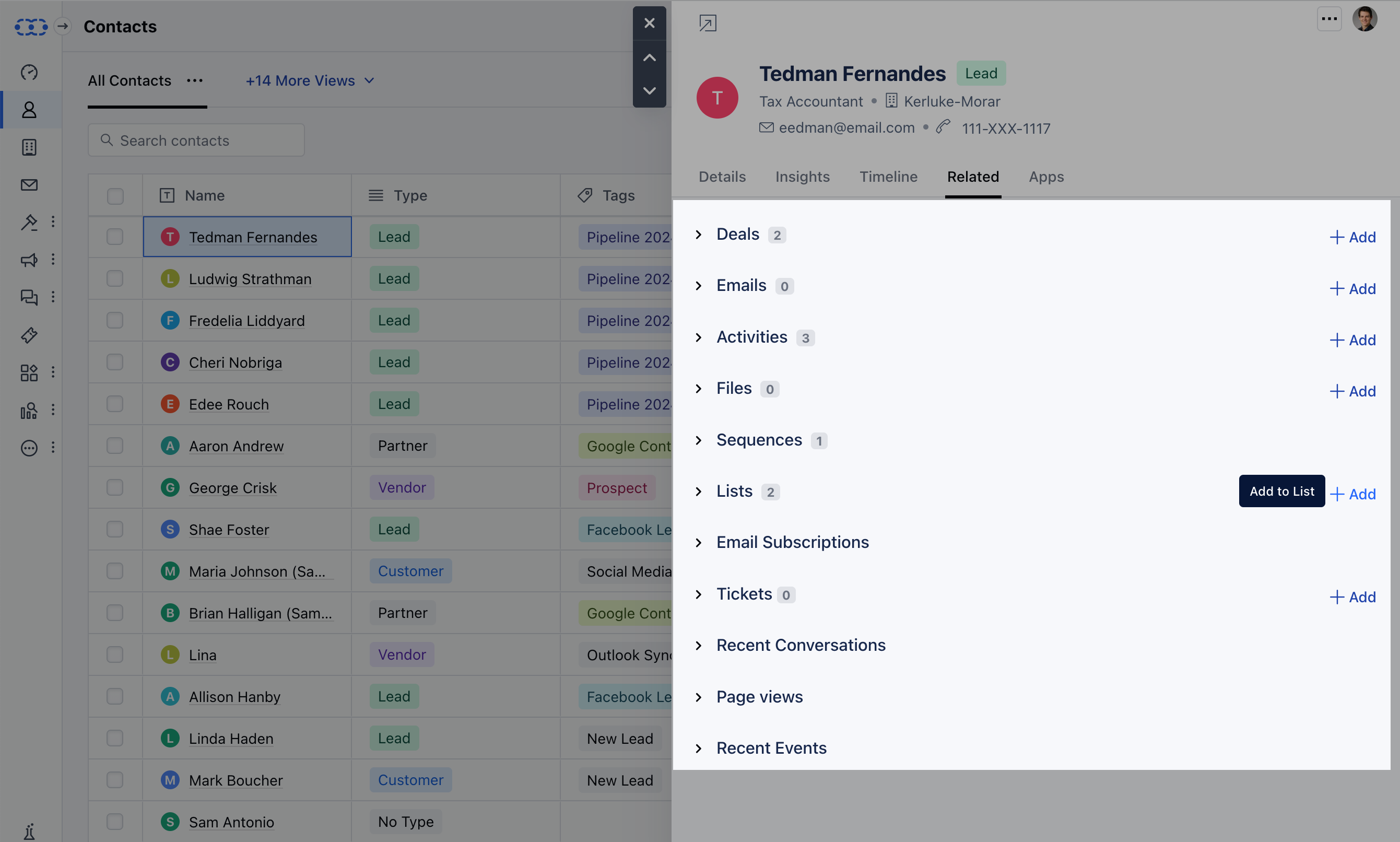
- You can get to a Contact's preview by clicking on the preview button which you can find after hovering over the Name
- Get to the Related tab and click on the (+ Add) button beside the List option
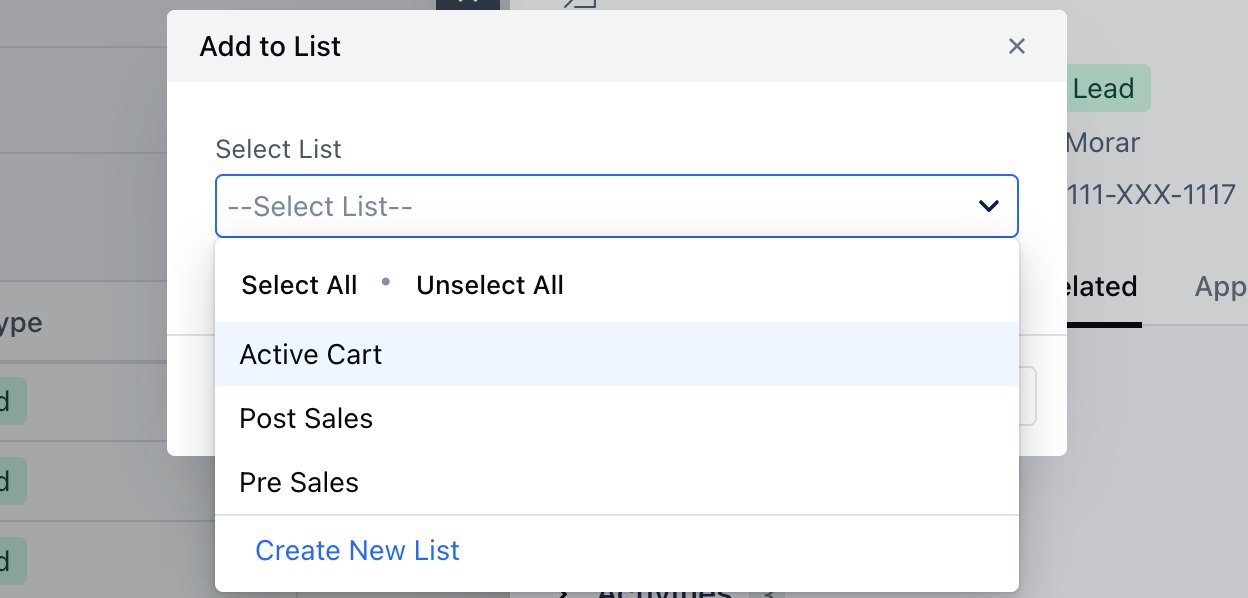
- Select the List where you wish to add the contact to; where you can select multiple Lists
- Once selected, hit on Save
Gmail Chrome Plugin - Contact Quick View
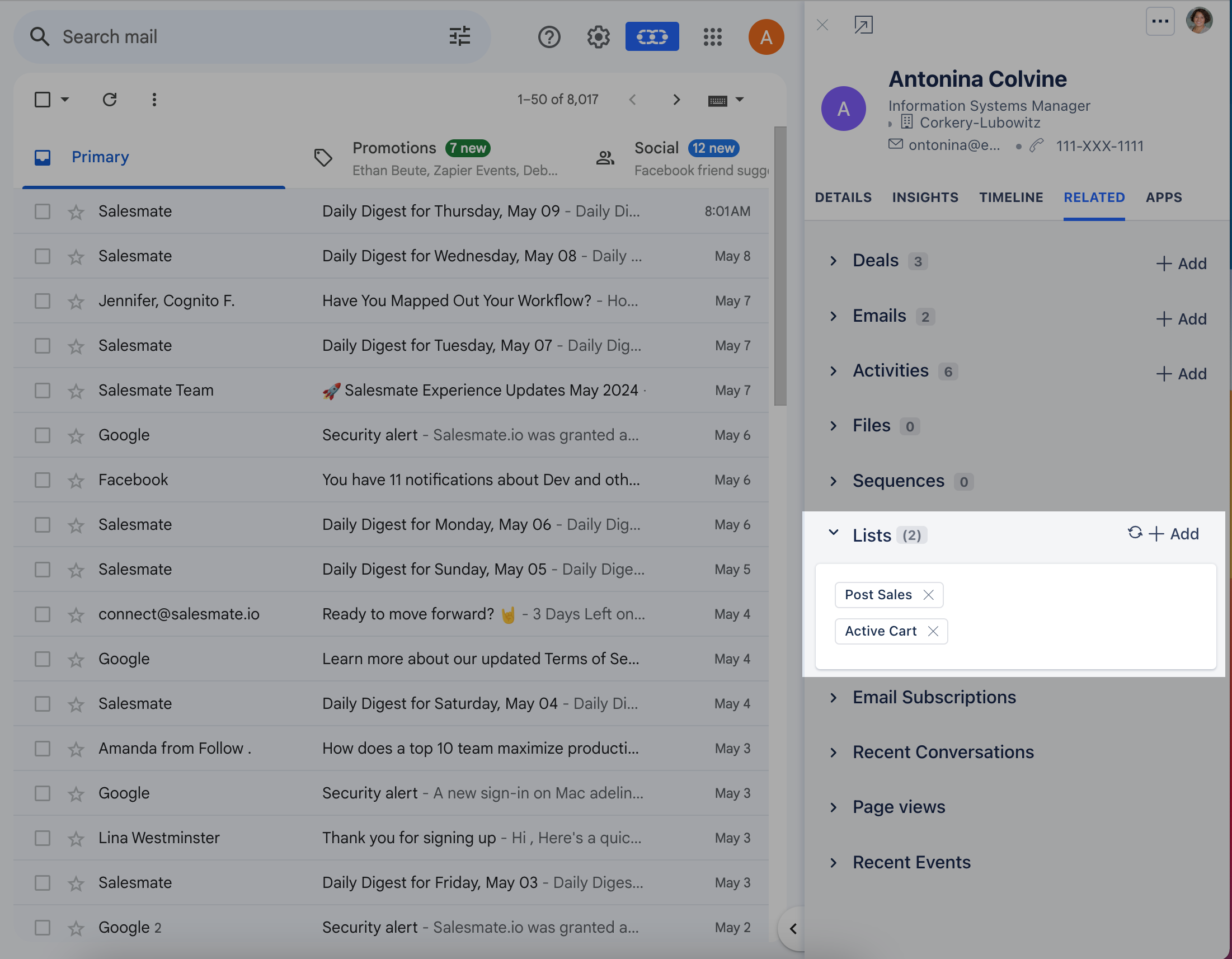
- Under your Gmail account access the Salesmate's chrome plugin
- You can get to the quick view of a contact by clicking on the name under the contact list or contact selection in the global search under the plugin
- Click on the Related tab where you will find the List menu under it
- Click on the (+) button
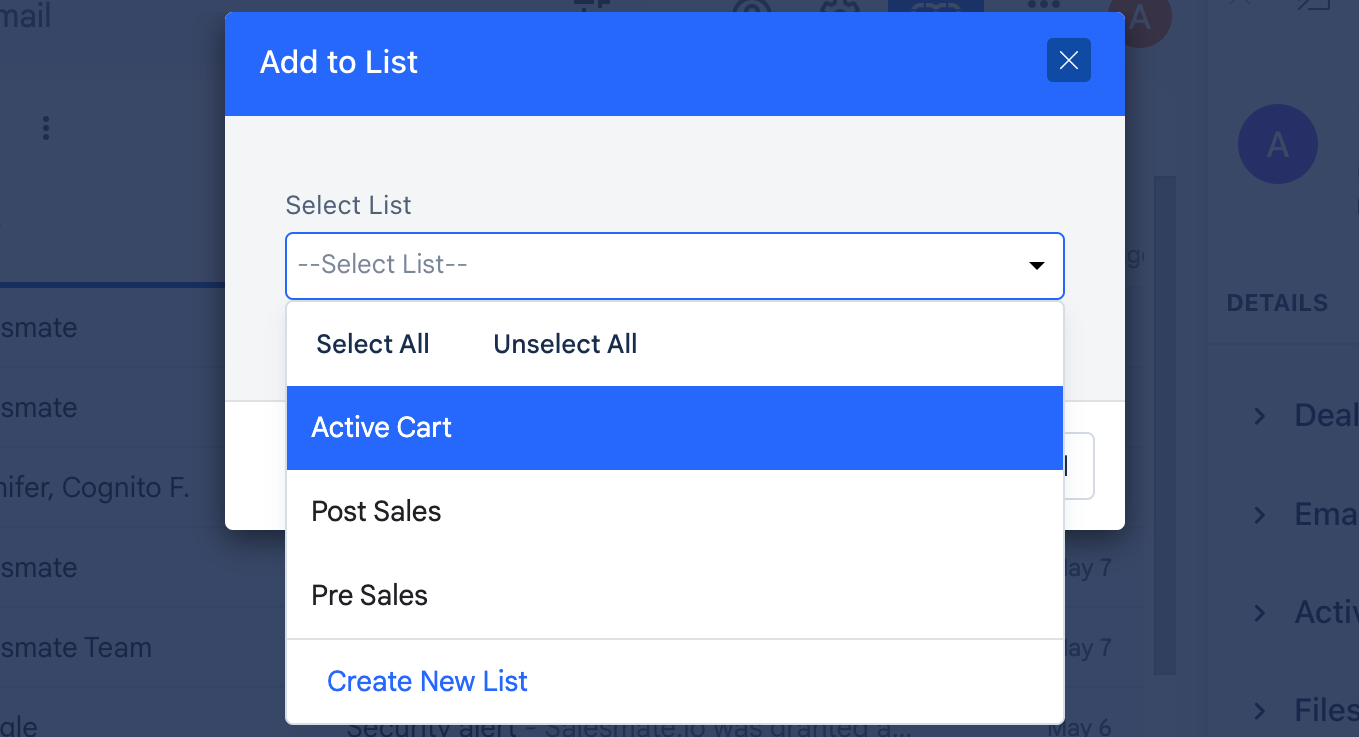
- Select the List where you wish to add the contact to; where you can select multiple Lists.
- Once selected, hit the save button
Comments
0 comments
Article is closed for comments.